


What if a few rules could reclaim hours of wasted time and constant notification noise?
Teams lose focus when tasks jump between dozens of apps and manual handoffs. Automation runs simple, repeatable tasks in the background: “When this happens, do that.”
Zapier is the most connected AI orchestration platform and links thousands of apps like Google, Salesforce, and Microsoft. It is free to get started and helps build a clear workflow that removes busywork.
This article maps a step-by-step path from beginner setup to scalable, cross-department systems. Readers will learn core automation concepts, how a Zap works, how to build a first automation, and how to expand into advanced logic.
Start small, scale safely: validate one workflow, measure results, then grow into multi-step systems across accounting, marketing, sales, HR, reporting, and IT.
Key Takeaways
- Automation reclaims time and attention lost to app overload.
- Zapier connects with thousands of popular apps and is free to begin.
- One validated workflow reduces errors and speeds responses.
- The guide shows a clear path from first Zap to advanced logic.
- Target readers: operators, team leads, and US small-to-midsize firms.
Why business automation matters right now for teams in the United States
As app counts climb, routine tasks quietly consume more hours across teams and roles.
Most employees touch dozens of apps every week. That creates notification overload and lots of manual data shuttling between tools.
Invisible busywork includes copying form entries into spreadsheets, forwarding messages, creating tasks, and repeating status updates across software. These chores add interruptions and lower focused time.
Smaller teams feel this loss keenly because headcount rarely keeps pace with the growing app stack. Automation moves repetitive work into the background so staff can focus on customers, strategy, and creative problem solving.
Common day-to-day examples readers will recognize: email triage, file saves, task updates, and reminder notes. Each saved minute compounds into meaningful gains in time and attention.
| Common Task | Manual Steps | Typical Time Spent | Automation Effect |
|---|---|---|---|
| Email triage | Read, forward, label | 10–30 min/day | Routes and labels automatically |
| Form data entry | Copy into spreadsheet | 15–45 min/day | Writes rows automatically |
| Task creation | Manually open apps, add tasks | 5–20 min/day | Creates tasks from triggers |
Next: the simplest mental model is: “When this happens, do that.” This idea powers fast wins and sets the stage for practical workflow building.
Workflow automation basics: the “When this happens, do that” model
A clear rule — when X happens, do Y — turns repetitive steps into reliable, repeatable workflows.
What automation means in day-to-day work: automation is a configured set of rules that runs without manual intervention once turned on. It watches for defined events and performs tasks exactly the same way each time.
Example: when a new form submission arrives, do create a CRM contact and notify the team. That simple WHEN/DO pattern saves time and prevents missed leads.
What a workflow is vs. what a process is
A process is the outcome — the “what.” For billing, the process is “bill the client.”
A workflow is the repeatable “how.” It lists steps across apps: create an invoice, send it for signature, and record payment. Workflows map apps, fields, and handoffs.
How a zap works: trigger, action, and multi-step workflows
Triggers start the automation when an event occurs. Actions execute outcomes like creating records or sending alerts. A single zap can chain many actions for complex workflows.
Multi-step workflows matter because they reduce handoffs, keep records consistent, and make sure the same steps happen every time. They are ideal for high-volume, rules-based tasks that cause rework and errors when done manually.
| Concept | Definition | Business example |
|---|---|---|
| Automation | Rules-based tasks that run automatically | Create contacts from form submissions |
| Process | The outcome or goal | Bill the client |
| Workflow | Repeatable steps across apps | Create invoice → send → record payment |
| Trigger | Event that starts a zap | New form entry |
| Action | Task executed after trigger | Create CRM record, send message |
What Zapier is and what it connects across apps, tools, and platforms
Think of zapier as the glue that links apps, moving information across systems without custom code.
AI orchestration explained simply
AI orchestration means coordinating data and actions across multiple tools with clear rules and structured fields. Zapier acts as an integration layer that moves records, applies logic, and writes data tables so people do less manual work.
For US teams, a single platform that talks to many apps cuts down on copy/paste and reduces tool fragmentation. That makes systems more secure and repeatable across departments.
Every day automations include routing email into tasks, saving attachments to cloud storage, posting reminders in chat, and keeping a tracking spreadsheet updated.
- Route important email into Asana or Trello as tasks.
- Save attachments to Google Drive or Dropbox automatically.
- Post reminders to Slack and update tracking sheets.
Zapier supports simple zaps and multi-step, business-critical workflows. Inventory core integrations before building, then pick the highest-impact workflows next.
Decide where to add automation for the biggest time and cost impact
Prioritize work that repeats often and has clear inputs and outputs. Start with tasks that run daily or weekly, are rules-based, and move the same fields between apps. These produce fast wins and measurable savings.
- Pick high-volume, rule-driven tasks that repeat with consistent inputs and outputs.
- Use the “human bridge” test: if someone copies data between apps every day, that step is a prime candidate.
- Ask teams which tasks feel most annoying and map answers to minutes saved per week.
- Reduce distraction by routing critical alerts into one channel to cut noise and regain focused time.
Spot human bridges and notification chokepoints
Human bridges are manual handoffs that cost time and cause errors. Automating these preserves staff attention and reduces rework.
Look beyond efficiency toward innovation
Automation can synthesize information from several sources and trigger idea-capture workflows. That moves teams from chores into insight generation.
| Opportunity | Typical time/week | Expected impact |
|---|---|---|
| Form entries → CRM | 3–6 hours | Fewer errors, faster lead response |
| Attachment routing across apps | 1–4 hours | Saved time, consistent records |
| Notification consolidation | 2–8 hours | Lower interruption, better focus |
Bain & Company found an average cost reduction near 20% for firms that target automation at high-volume processes. Focused selections, not broad experiments, deliver that result.
Next: with a short list of candidates, the team is ready to design and build the first workflow automation.
How to automate your business using Zapier
Select a frequent, rule-based task as the team’s first experiment in automation. This builds an automation mindset while limiting risk.
Choose one small workflow
Pick a task that runs often and has few exceptions. Examples: form entries → CRM, or attachments → cloud folder.
Document current steps and apps
List each step, name the apps, and mark manual handoffs. Note where people copy and paste or re-enter data.
Map triggers and actions
Turn each handoff into a trigger and an action. Chain them into a multi-step zap when needed.
Build, test, and iterate
Create the Zap, test every step with real data, then turn it on. Monitor runs, fix mappings, and expand as the company grows.
Governance: assign an owner and a purpose statement for the Zap to prevent sprawl.
| Phase | Task | Outcome |
|---|---|---|
| Choose | Pick frequent, low-edge-case task | Fast confidence gain |
| Document | List steps and apps | Clear mapping for build |
| Build & Test | Create zap, run samples | Reliable automation |
| Operate | Monitor, iterate, own | Scalable workflows |
Set up Zapier for the first time: account, connections, and recommended apps
Begin by creating a clear admin account and confirming an organizational email for team-wide integrations. This helps with continuity when users change roles.
Zapier is free to get started, and during signup it will suggest automations based on the apps the team selects. Choose the everyday apps the group actually uses so suggestions and templates match real workflows.
Picking the apps the team uses every day
Select core apps first: email, CRM, spreadsheets, and messaging. Fewer, high-use connections make recommendations more relevant and speed rollout.
Permissions and access planning
Plan access before connecting sensitive systems. Email, CRM, and data tools can expose customer or employee information if permissions are too broad.
- Use least-privilege accounts for integrations.
- Limit who can create or edit zaps; assign owners.
- Standardize connection names (for example: “Salesforce – Ops Admin”).
| Step | Action | Why it matters |
|---|---|---|
| Create account | Verify organizational email | Ownership and audit trail |
| Select apps | Pick everyday, high-use tools | Better suggestions and templates |
| Plan access | Use least-privilege users | Protect sensitive data |
| Name connections | Standardize labels | Reduce confusion across users |
Next: once connections and permissions are in place, building the first zap in the editor becomes straightforward.
Build the first Zap in the editor: a practical walkthrough with triggers and actions
A practical first zap focuses on one trigger and one or two dependable actions.
Set the trigger app and event
Pick the app that starts the rule and select a clear trigger event. Common choices are a new form entry or a new email. The goal is one predictable event that starts the workflow.
Set the action app and event
Choose where data lands and the action that runs. For most teams this is “add new row” in a spreadsheet and an email or Slack notification. Map fields so names and addresses land in the right columns.
Test, name, and confirm reliability
Run tests with sample data. Confirm key fields, formatting, and dedupe rules. Use a clear name pattern like Marketing – Lead Form → Sheet + Notify.
- Test multiple samples.
- Verify no duplicate records.
- Confirm notifications won’t spam the channel.
| Step | What to pick | Why it matters |
|---|---|---|
| Trigger | Form submission | Starts workflow with structured data |
| Action | Add new row & send email | Stores data and alerts team |
| Test | Sample records | Validates mapping and format |
Next: once the basic zap runs, they can expand workflows with conditions, delays, and formatting.
Level up workflows with Zapier’s advanced tools: Filters, Paths, Delay, and Formatter
Filters, Paths, Delay, and Formatter turn single-step automations into resilient, production-ready workflows.
Why these helpers matter: real teams need rules, routing, timing, and clean data—not just a direct trigger and an action. Advanced tools reduce false positives, keep records tidy, and lower the number of separate zaps needed across a company.
Filters
Filters enforce rules so a zap runs only when conditions match. For security ops, they can check an email subject for the phrase “security alert” and then notify IT and log the incident.
Paths
Paths branch a zap by lead source, client type, or event registration. One zap can route different actions for each case, keeping workflows organized instead of scattering many small zaps.
Delay and Formatter
Delay schedules time-based steps. Use it to send follow-ups, reminders, or staged notifications without manual calendar chasing.
Formatter cleans and standardizes data. It normalizes phone formats, splits names, fixes capitalization, and strips stray characters so CRMs and reports stay accurate.
Test strategy: run samples that meet and fail each condition. Test every path and filter, then validate final records in the destination app.
| Tool | Main use | Example |
|---|---|---|
| Filter | Enforce rules | Only run if email subject contains “security alert” |
| Path | Branch actions | Route leads by source or event type |
| Delay | Schedule action | Send follow-up email after 48 hours |
| Formatter | Clean data | Standardize phone, split full name |
These helpers make workflow automation practical for real teams. They power lead routing, invoicing follow-ups, HR approvals, and security alerts as the organization scales.
Accounting and bookkeeping automation for accurate reporting and less rework
Accounting workflows are prime candidates for fast ROI because they repeat the same steps and demand precision. Finance teams should diagram common flows first, then center automation around the accounting software already in use.
Gartner found that roughly 30% of a full-time accounting employee’s work could be saved if automation reduced avoidable rework. That figure justifies prioritizing bookkeeping where errors and reconciliation cost the most.

Practical examples include add new Expensify reports into Google Sheets for real-time reporting and add new Stripe payments as receipts in QuickBooks Online. Another pattern: HubSpot form submissions → Google Sheets → FreshBooks to add new clients without manual entry.
- Expense tracking: capture reports and export live data to sheets for audits.
- Invoicing: when Stripe records a payment, generate a receipt in QuickBooks and update a sheet for visibility.
- Client onboarding: create or update client records from each form submission to prevent missed billing.
| Use case | Zap example | Operational result |
|---|---|---|
| Expense reporting | Expensify → Google Sheets (add new) | Real-time expense tracking and audit trails |
| Payment receipts | Stripe → QuickBooks Online (add new) | Auto-generated receipts and ledger updates |
| Client onboarding | HubSpot form → Google Sheets → FreshBooks (add new) | Zero-touch client record creation and fewer billing errors |
Controls: use Formatter for consistent field formats and restrict accounting connections to least-privilege users for safe management. These steps keep data clean and reduce costly rework.
Marketing automation to capture leads, personalize follow-ups, and streamline content
Smart marketing combines speed with personalization. When channels spill leads into many places, teams need a single, reliable flow that captures each contact and responds instantly.
Make lead ads work by automatically routing and updating CRM tools
When a new lead appears from a Facebook Lead Ad, the zap can add new contact records in Salesforce and notify sales for immediate follow-up. Instant replies matter: customers are about 42% more likely to follow up after a fast response.
Streamline social cross-posting and brand mention monitoring
Cross-post content from Instagram to Facebook Pages and send brand mention alerts into chat. This keeps social teams timely without copying posts or missing engagement.
Organize email lists from events and website forms
Consolidate subscribers from events, purchases, and website forms into one clean email list. Use Formatter steps to normalize fields, then add new subscribers into Mailchimp with consistent tags and segments.
Support online and in-person events with attendee management
When someone registers for an event, automatically add attendees to the CRM and the event email list. For example: Eventbrite → Mailchimp, plus a CRM update so follow-up workflows run without manual exports.
- Speed and personalization scale better than manual handoffs.
- Route lead ads into CRM, notify teams, and log the source for tracking.
- Test samples and build dedupe rules so the system won’t create duplicate contacts.
| Use case | Zap example | Result |
|---|---|---|
| Lead routing | Facebook Lead Ads → Salesforce (add new) | Faster response, tracked source |
| Event attendees | Eventbrite → Mailchimp (add new) | Clean lists and timely emails |
| Social ops | Instagram → Facebook Pages | Consistent content and monitoring |
Sales workflow automation to move prospects through the pipeline faster
Sales teams win when leads get an immediate, consistent response that starts a predictable pipeline flow.
Instant follow-up emails and task creation
Goal: cut lag between capture and first touch because speed raises conversion rates.
When a new lead arrives, send a personalized email, create a sales task, and log the interaction in the CRM automatically. This ensures no lead sits unacknowledged and a rep has a clear next task.
Automatic meeting scheduling and handoffs
When a prospect requests time, the workflow should create a calendar event, notify the right owner, and update the contact record. Use branching rules to route leads by territory, company size, or product interest.
Keep CRM data accurate
Reliable data drives revenue: use formatter steps to standardize phone and email fields. Add dedupe checks and single-channel notifications so alerts don’t overwhelm the team.
| Use case | Zap example | Result |
|---|---|---|
| Immediate follow-up | Form → Email + Task (create) | Faster response, tracked contact |
| Scheduling | Booking form → Calendar + CRM update | Auto-scheduled meetings, correct owner |
| Handoff rules | Lead source → Path routing | Correct rep assignment, fewer dropped leads |
HR automation for recruiting, onboarding, and vacation request management
People operations produce many routine handoffs; clear rules keep sensitive work consistent and auditable.

Recruitment workflows capture applications from a form, send a confirmation email, and notify recruiters. For scheduled interviews, a zap can add new calendar events for hiring panels and update shared calendars so everyone sees availability. Practical examples: Typeform → Workable and Zoho Recruit → Google Calendar are common patterns that speed response and reduce missed candidates.
Secure onboarding that protects data
Onboarding should automate e-signature requests, document filing, and access provisioning with least-privilege rules. A typical flow: add new hires into a sheet, trigger Dropbox Sign for contract signatures, then file signed documents into restricted folders. This reduces exposure of sensitive information and keeps an audit trail.
Time-off requests and approvals
Time-off workflows route form submissions to managers, send reminders when approvals lag, and update shared calendars and logs. MeisterLabs moved requests into Google Forms, then automated Slack manager alerts and sheet logs. The result: fewer inboxes flooded and on-time approvals.
Governance and testing: restrict HR connections, document each data flow, and include reminders or delays for pending signatures or approvals. Test every zap with sample records and keep an audit trail for compliance.
| HR area | Example zap | Operational result |
|---|---|---|
| Recruiting | Typeform → Workable (add new) | Fast receipts, recruiter alert, calendar setup |
| Onboarding | Google Sheets → Dropbox Sign (request signature) | Secure e-sign, filed documents, audit trail |
| Time-off | Google Sheets → Slack alerts (add new) | Manager notification, calendar update, sheet log |
Reporting and analytics automation to standardize data and build a reliable database
Reliable reporting starts where data enters the system: clean inputs make every dashboard trustworthy. Reporting quality depends on input quality, so enforce consistency at capture rather than fixing errors later.
Standardize forms so incoming information is clean and consistent
Standardize forms and fields: normalize names, emails, and categories with Formatter steps before records land in storage. This reduces manual cleanup and preserves a consistent schema for later analysis.
Compile data from multiple sources into a single source of truth
Automatically aggregate inputs from many sources into one table or database. For example, route submissions into Airtable or a central Google Sheet, or add new rows into MySQL for transactional data. Field mapping and data type alignment are critical when merging sources.
Automate basic analysis so the team spends time interpreting, not collecting
Trigger scheduled exports, compute simple rollups, and deliver summary emails or dashboard-ready tables. Basic automation handles tracking metrics and flags anomalies so analysts focus on insight and decisions.
| Issue | Zap example | Result |
|---|---|---|
| Form standardization | Google Forms → Airtable (add new) | Consistent records, cleaner reporting |
| Lead storage | Facebook Lead Ads → MySQL (add new) | Structured leads for queries and joins |
| Cross-source rollup | Multiple forms → Central Sheet (add new) | Single source for dashboards |
McKinsey Global Institute notes high feasibility for automating data-collection and processing tasks. That makes reporting pipelines a practical early target for workflow automation and trust-building.
Governance: assign an owner, standardize naming conventions, and log schema changes so downstream dashboards remain reliable and maintainable.
IT and tech support automations for monitoring, security, and fast response
Reliable tech support workflows reduce human error during incidents and speed recovery. Faster detection and consistent procedures lower risk and keep systems available.
Automated backup reminders and scheduled security scans
Baseline hygiene should not depend on memory. Scheduled scans and backup reminders keep systems healthy and auditable.
Set weekly scans and daily reminders so IT can review failures before they become incidents.
Route security alerts for immediate action
When a security tool triggers an alert, route it to SMS, email, or a monitored chat channel. This reduces dwell time and speeds the right actions.
Example Zaps: Intruder → Twilio for SMS alerts and a parallel email notification for the on-call person.
Provision access safely and audit changes
When a new user appears from an HR form or WordPress user creation, add them to the password manager team with least-privilege defaults.
Example Zap: WordPress → LastPass (add new user entry). Test and include a rollback plan for accidental grants.
| Use case | Zap example | Result |
|---|---|---|
| Backup reminders | Scheduler → Google Sheets (add new) | On-time backups and clear logs |
| Security alert routing | Intruder → Twilio + Email (add new) | Faster response, fewer missed alerts |
| Safe provisioning | WordPress → LastPass (add new) | Consistent access, audit trail |
Governance matters: restrict who edits these automations, document trigger conditions, and use Filters, Paths, and Delay in Zapier to prevent noise and route incidents by severity.
Make automation stick: governance, testing, and scaling across the company
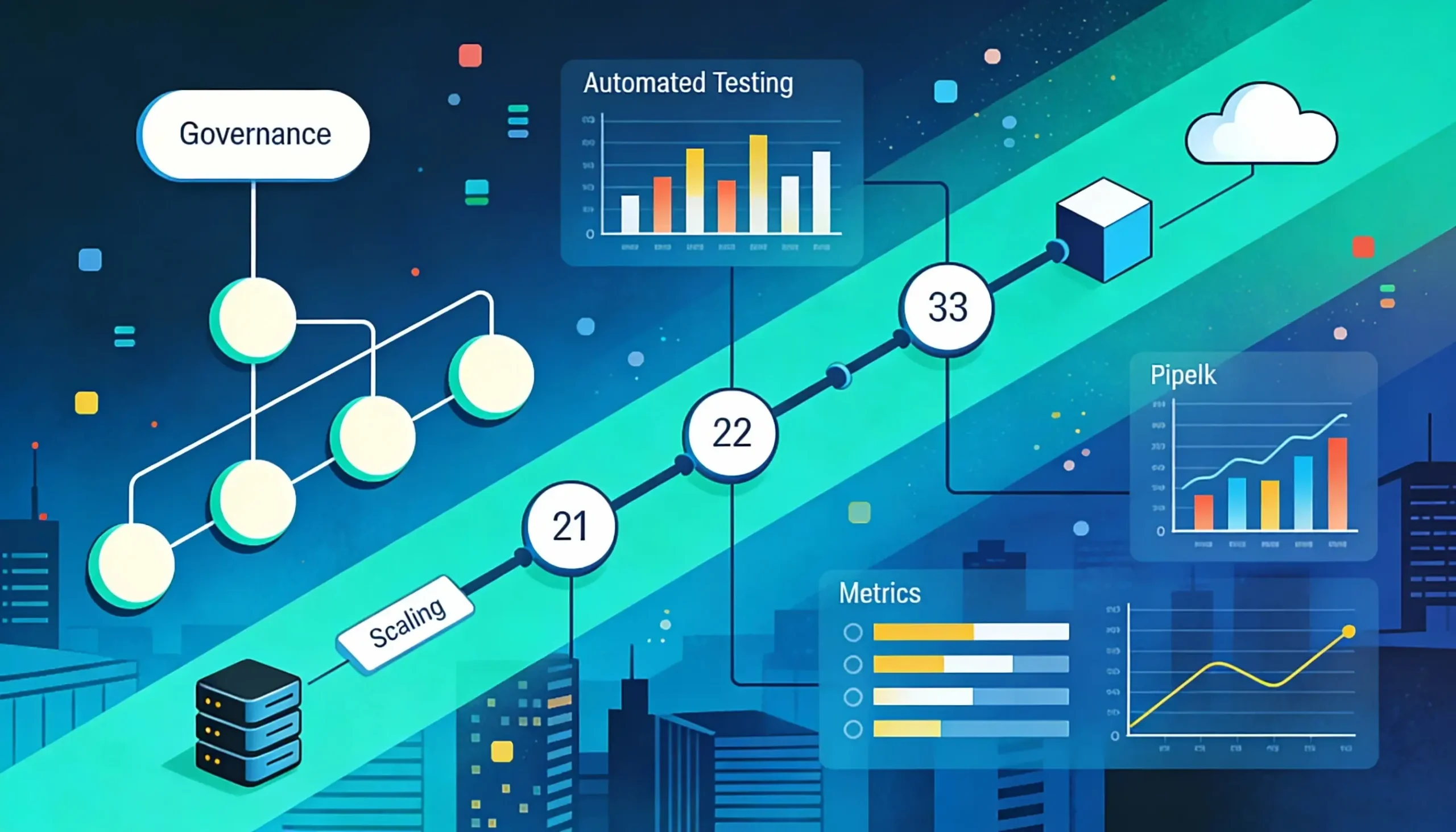
Sustained gains come from clear rules, named owners, and a lightweight change log that keeps workflows reliable.
Create shared standards for naming Zaps, tracking owners, and documenting steps
Name zaps with a consistent pattern: Department – Purpose – Version. Assign a single owner and list contact details.
Keep a short runbook for each workflow that records trigger conditions, mapped fields, and common failure modes.
Protect sensitive client and employee data with least-privilege access
Limit connections for email, HR, accounting, and CRM accounts. Use service accounts that only have the rights needed for the zap.
Measure impact with time saved, error reduction, and faster response times
Track minutes saved per week, count fewer manual corrections, and log response-time improvements. Use real proof points like Calendly’s 10 hours saved per week and Hudl’s $12k–$15k annual savings and 21.5% lower handle time.
Expand from single Zaps to orchestrated, cross-department workflows
Start small, then stitch zaps into larger processes with Paths and Filters. Review top automations monthly, retire unused ones, and prioritize changes based on incident logs and business goals.
Start small today, then let Zapier scale workflows every day
Begin with a single, everyday task and run it until the team trusts the result. Pick a workflow that runs every day or several times each week so benefits become visible fast.
Map the steps, pick a clear trigger and actions, test with real information, then turn the zap on. Watch runs, fix mappings, and iterate. That build loop beats perfect planning for early wins.
Focus on outcomes: less manual work, fewer errors, clearer processes, and faster response times. Identify one human bridge, replace it with a zap, document the change, and share results internally.
Scale thoughtfully: once one automation is stable, replicate the pattern across departments to create consistent, reliable workflows that support business growth.