



Surprising fact: teams lose roughly 3–5 minutes of focused work every time they switch apps, and that adds up to hours per week across a distributed org.
This introduction defines what “remote-first” means in 2025: processes, docs, and culture default to distributed collaboration rather than office exceptions. It sets the scene for buyers who are comparing options, price points, and trial criteria instead of elementary definitions.
The roundup helps readers choose a modern stack that cuts friction, boosts measurable productivity, and supports async collaboration. It targets technical teams and developer-heavy groups that need deep integrations and strong security posture.
Core pain: app sprawl and constant context switching. What counts as “best” on this list is clear: adoption, integration fit, measurable gains, and secure operations — not hype.
Why remote-first teams need a modern tool stack in 2025
In 2025, a deliberate stack separates high-performing distributed teams from ad hoc app collections. A thoughtful approach reduces friction and preserves focused work.
Remote work adoption signals: what teams are actually using
Survey data shows 91% of remote workers use video conferencing, 62% use project management platforms, and 61% use instant messaging. These categories are baseline expectations for any distributed team.
Where productivity gets lost
Context switching between chat, tasks, docs, and meetings fragments focus. Each switch costs roughly 3–5 minutes of attention, and one manager estimated nearly 30% time lost to hopping between systems.
- Fragmented context: duplicated updates and missed decisions.
- Tool sprawl: random apps add notifications, not clarity.
- Single source of truth: central docs reduce repeated questions across time zones.
Remote success requires both a curated stack and new habits — documentation over meetings and async updates over instant replies. The next section explains what buyers should evaluate beyond feature lists: integration depth, security, and cross-platform usability.
What to look for when buying remote work tools for teams
A useful buying checklist focuses on adoption, security, and how well systems talk to each other. This helps teams shortlist options fast and test real-world fit during trials.
Async-first workflows that reduce meetings
Async workflows center on check-ins, written updates, recordings, and decision logs. These practices shrink recurring meetings and keep work moving across time zones.
Look for features that support templates for daily updates, threaded comments, and easy recording playback. That ensures employees can catch up without real-time interruptions.
Deep integrations with existing apps and platforms
Tools must offer robust integrations with code hosts, CI/CD, calendars, and storage platforms. Integrations should surface context without creating notification noise.
Prioritize systems that let you map events to existing pipelines, sync permissions, and automate routine handoffs.
Security, compliance, and role-based access
Security should include encryption at rest and in transit, MFA/SSO, audit logs, and role-based access controls. These features protect data and simplify compliance with GDPR or HIPAA.
Cross-platform usability and scalability
Choose platforms with consistent experiences on Windows, macOS, Linux, iOS, and Android. Scalability means adding users and teams without re-platforming.
During trials, test admin controls, permission templates, migration options, and support responsiveness to validate management needs without veering into surveillance-first setups.
Best tools for remote-first companies
Each product here is sorted by real workflow and outcome so teams can pick software that fits projects and compliance. The goal is to help readers consolidate where it reduces friction and add specialty services where needed.
How this roundup is organized by use case (not hype)
The taxonomy groups offerings by role and outcome: communication, project tracking, docs, security, and async media. That makes it easier to build a stack or remove overlap.
Pricing, free plans, and what to evaluate during trials
Many vendors offer free plans or trials. Teams should test in real projects with real deadlines and cross-team dependencies.
- Trial methodology: run a sprint or project pilot, assign one task owner, and measure handoffs.
- Evaluation checklist: setup time, permissioning, onboarding, admin controls, integrations, and reporting/tracking quality.
- Pricing notes: calculate total cost of ownership, per-user fees, and when a free plan is limiting versus sufficient.
Procurement needs like security reviews, SSO readiness, and data retention rules should guide selection. Each product blurb that follows focuses on fit and tradeoffs instead of marketing claims, helping teams choose with confidence.
All-in-one work hubs that cut tool sprawl
Consolidated work hubs bring project context, chat, and task tracking into one window to cut friction. This approach reduces duplicated status updates and keeps execution close to conversation.
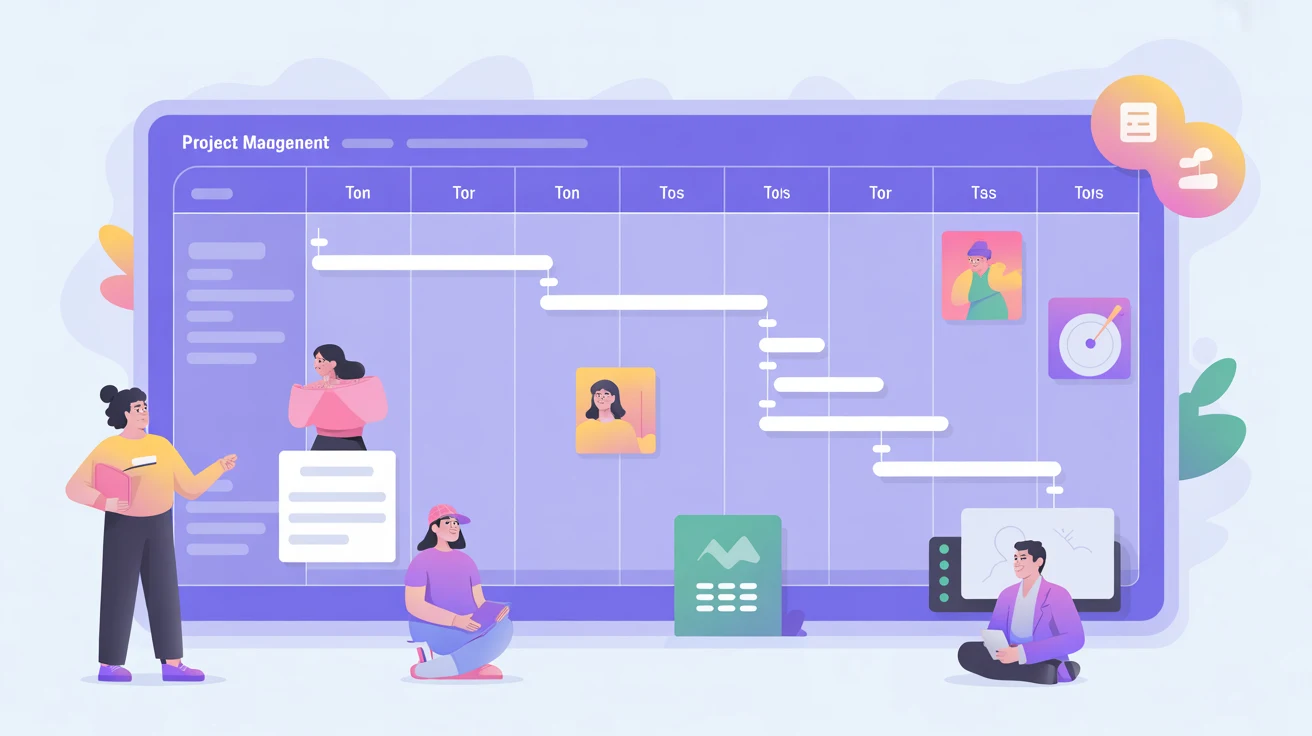
Teamcamp: unified project management, chat, and developer workflows
Teamcamp combines project management, team chat, and workflow automation. It supports Git-based task updates, sprint planning, story points, and integrated time tracking.
Developer advantage: Git-linked updates remove manual status changes and improve task accuracy. Teams report faster sprint planning and clearer task handoffs.
Hive: projects, action cards, email, and meeting notes in one place
Hive ties projects, action cards, email integration, file sharing, and meeting notes into a single pane. It can start Zoom meetings and uses Buzz AI to seed projects and emails with context.
One-window benefits: fewer missed handoffs, reduced duplicate reporting, and searchable meeting notes that live with tasks.
- When consolidation wins: small-to-mid teams, fast-moving product orgs, and dev-heavy groups that need tight feedback loops.
- When to avoid it: large enterprises that require best-of-breed stacks for specialized workflows.
- Trial checklist: run one sprint or client project, measure time saved, and track fewer status meetings and clearer updates.
Project management tools to plan projects, track tasks, and manage workflows
Project management software brings clarity to multi-team work by making ownership, timelines, and dependencies explicit.
These platforms help remote execution by assigning clear owners, showing dependencies, and keeping visibility across time zones. That reduces duplicated work and missed handoffs.
Linear
Fit: product and engineering teams that need speed and Git integration.
Why it stands out: keyboard-first navigation, fast issue tracking, and lightweight sprint planning that syncs with code workflows.
Asana
Fit: structured planning across teams.
Why it stands out: timelines, automation for recurring work, and clear cross-team visibility.
Trello
Fit: small teams or simple Kanban flows.
Why it stands out: quick task updates, visual boards, and easy automation for repeatable cards.
monday.com
Fit: teams that want customizable workflows and dashboards without Jira-level complexity.
Why it stands out: flexible views and no-code automations to model processes fast.
Jira
Fit: complex agile organizations.
Why it stands out: custom workflows, advanced reporting, and a deep ecosystem of integrations. Start simple to avoid admin overhead.
- Practical comparison: setup time (Trello fastest, Jira slowest), reporting depth (Jira deepest, Linear focused), permissioning (Jira robust, Asana balanced), handling scope changes (monday.com flexible, Linear nimble).
- Buying advice: run a two-week pilot, verify integrations with repos and calendar, and measure reporting accuracy and team adoption.
| Product | Setup Time | Reporting Depth | Best For |
|---|---|---|---|
| Linear | Low | Moderate | Fast issue tracking, Git-linked work |
| Asana | Medium | Good | Timelines and cross-team plans |
| Trello | Very Low | Basic | Simple Kanban and quick updates |
| monday.com | Medium | Good | Custom workflows and dashboards |
| Jira | High | Advanced | Complex agile reporting and integrations |
Communication tools for remote teams that keep information accessible
Clear, searchable communication keeps distributed work visible and prevents answers from living only in people’s heads. Remote teams rely on a shared record so information does not become tribal knowledge.
Slack: channel-based chat, threads, and app notifications
Slack works when channels map to projects or topics and threads capture decisions. Organize by project/topic, enforce thread discipline, and route app notifications to dedicated channels so team members are not overwhelmed.
Note the limit: decisions posted only in chat can disappear. Link threads to decision logs or docs to preserve outcomes.
Microsoft Teams: tight Microsoft 365 integration
Microsoft Teams fits organizations already in Microsoft 365. It offers enterprise controls, single-pane access to files, and familiar UX that helps members adopt quickly.
Discord: always-on voice and informal collaboration
Discord is ideal for small, tight-knit groups that need always-on voice rooms and casual collaboration. It surfaces quick syncs without formal meetings.
- Evaluation criteria: retention/search, guest access, moderation controls, and async support.
- Operating norms: define what belongs in chat vs. docs vs. tasks to keep information durable.
- Adoption risk: consistent use patterns and clear agreements matter more than the specific choice.

Video meetings and calling platforms for reliable remote collaboration
Reliable video and business calling remain essential when teams need real-time alignment or complex walkthroughs.
When to pick live sessions: use video for demos, sensitive conversations, or multi-person design reviews. Use async updates when the topic is status-only or can be captured in a recording.
Zoom delivers dependable video with breakout rooms, built-in recording, and a whiteboard. It supports up to 100 participants on the free tier, so small webinars and cross-team meetings scale without friction.
Evaluate Zoom on audio/video stability, recording storage, admin controls, and how easy it is for external users to join.
Dialpad pairs business calling with meeting intelligence. Voice Intelligence creates AI transcripts, searchable notes, and automated action items. It also integrates with Salesforce and Zendesk for customer-facing workflows.
Transcripts let absent users catch up without another meeting. For customer teams, prioritize call quality, CRM integrations, and compliance settings.
During trials, run real meetings, test transcription accuracy, and confirm privacy controls. To reduce fatigue, replace routine status meetings with short async check-ins and recorded updates.
| Platform | Core strengths | Key evaluation points |
|---|---|---|
| Zoom | Reliable video, breakout rooms, recordings, whiteboard | AV stability, storage limits, admin controls, external join flow |
| Dialpad | AI transcripts, searchable notes, CRM integrations | Transcription accuracy, call quality, compliance, integration depth |
| Hybrid approach | Async + short live sessions | Recording availability, clear norms, handoff documentation |
Documentation and knowledge management tools that prevent “lost in chat” decisions
Durable knowledge systems stop key choices from getting buried in chat. Documentation is the control point that keeps decisions, specs, and runbooks discoverable and durable across distributed projects.
Notion is built for living docs and structured databases. Teams use it for onboarding templates, decision logs, post-mortems, and product specs that link directly to work items. Notion databases let engineering and product map records to tickets so context travels with execution.
Governance tips for Notion: assign doc owners, set review cadences, and use templates to keep entries consistent. Establish a decision-log page and require a short entry whenever a major tradeoff is accepted. This prevents repeat debates and reduces meeting load.
Confluence at scale
Confluence offers enterprise permissioning, structured spaces, and tight Jira integration that supports traceability between specs and issues. It suits orgs that need granular access controls and auditability.
Confluence risk: without clear information architecture and templates, pages become stale. That “wiki graveyard” effect lowers productivity and hides critical guidance.
- Evaluation points: search quality, permissions and access controls, version history, and approval workflows.
- Execution links: always connect specs to tasks, meeting notes to decisions, and retros to action items.
- Pattern to adopt: a decision log that captures date, context, owners, and follow-ups for each key choice.
| Platform | Strength | Governance need |
|---|---|---|
| Notion | Living docs, databases, easy linking to tasks | Doc owners, templates, review cadence |
| Confluence | Enterprise permissions, Jira traceability | IA, templates, archiving policy |
| Shared drive + Docs | Real-time editing, simple access controls | Folder standards, naming conventions, retention rules |
File sharing and content collaboration for distributed teams
A shared file system is the backbone of distributed work, giving teams reliable access to the documents they need.
File sharing matters for remote workers working from home because it delivers fast access, clear version control, and strict permissioning. These elements cut repeated requests and reduce time wasted chasing the latest draft.
Google Drive for real-time docs, controlled access, and anywhere editing
Google Drive supports centralized sharing, live editing, mobile access, and admin-controlled permissions. Link-sharing governance and shared drives help teams keep project artifacts organized.
Best practices: prefer shared drives over personal storage for team files, enforce naming conventions, and run periodic permission audits to avoid oversharing.
Dropbox for strong storage plus collaborative notes
Dropbox combines large-file storage with Dropbox Paper for lightweight collaborative notes and meeting artifacts. It suits teams that need reliable storage plus simple doc collaboration.
Comparison highlights: both platforms offer commenting, version history, offline access, and external sharing controls. Google Drive emphasizes real-time editing; Dropbox excels at large-file sync and deterministic storage.
- Evaluation items: storage limits, security features, admin reporting, and integrations with project management apps.
- Operational needs: onboard and offboard remote workers with role-based access to avoid accidental exposure.
- Policy: set a single source-of-truth location and archive duplicates to prevent split records across apps.
| Platform | Strength | Key admin controls |
|---|---|---|
| Google Drive | Real-time editing, link governance | Shared drives, permission audits, DLP |
| Dropbox + Paper | Large-file sync, lightweight docs | Team folders, version history, device sync controls |
| Evaluation focus | Collaboration UX, offline, external sharing | Storage limits, integrations, admin reporting |
Visual collaboration and async explainers that speed up alignment
A single diagram or a two-minute walkthrough can stop days of back-and-forth. Visuals plus short recordings preserve nuance and cut the need for repeated live meetings.
How they help: pictures and clips reduce questions, speed approvals, and keep context with the work. That raises overall productivity across distributed teams.

Miro: planning and technical visualization
Miro handles whiteboards, architecture diagrams, retros, dependency maps, and roadmapping workshops. Use it to map systems and capture decisions in one shared canvas.
Figma: design-to-dev handoff
Figma offers Inspect mode, design tokens, and FigJam for collaborative sessions. It keeps design files connected to tickets so developers get exact specs and assets.
Loom: async video updates
Loom delivers short async video updates and walkthroughs that replace routine status meetings. Teams use recorded tutorials to onboard faster and preserve tribal knowledge.
CloudApp: fast feedback loops
CloudApp is ideal for annotated screenshots, GIFs, and quick screen recordings. Shareable links speed bug reports and UI reviews with clear visual context.
- Workflow guidance: use whiteboards for mapping and brainstorming, design files for handoff, and recordings for context or demos.
- Evaluate: sharing ease, viewer permissions, commenting, and how outputs store in docs and tickets.
Time tracking and team visibility tools for productivity and accountability
Clear visibility into where hours are spent gives distributed teams the capacity data leaders need to plan and bill accurately. Time tracking and simple visibility reduce surprises in delivery and support transparent client invoicing.
Why it matters: forecasting capacity, improving accountability, and enabling accurate client billing depend on reliable hours data. Good tracking makes resource decisions evidence-based instead of guesswork.
TMetric
TMetric uses task timers and project-level timers to capture billable and non-billable hours. It produces reports managers use for payroll, time-off calculations, and operational reviews.
Hubstaff
Hubstaff adds monitoring and management insights where regulation or sensitive ops require oversight. Use it responsibly and pair monitoring with clear policies and role-based access.
Range
Range replaces routine status calls with async check-ins that capture daily updates, blockers, and team sentiment. That reduces meeting load while keeping work linked to tasks and projects.
- Culture note: avoid surveillance-first rollouts. Emphasize outcomes, not screen time.
- Implementation tips: set check-in cadence, standardize prompts, and link reports to tasks and projects.
- Evaluation metrics: fewer meetings, improved on-time delivery, and clearer weekly hours allocation.
- Buyer guidance: pick one source of truth for time reporting to prevent conflicting hours across systems.
Remote access and security tools to protect systems and streamline access
Identity and remote access are the gatekeepers that keep distributed systems both usable and secure. Secure entry points, least-privilege controls, and fast onboarding matter as more employees are working remotely. A clear access model reduces downtime and cut friction for business operations.
Splashtop enables secure remote access to Windows, Mac, and Linux from Windows, Mac, iOS, Android, and Chromebook. It supports file transfer, remote print, screen share, and multi-user management to keep users productive while working remotely.
TeamViewer excels at technical troubleshooting. IT can provide guided assistance, remote desktop access, and quick incident response that shortens recovery time during outages or device failures.
Okta acts as the identity layer across business apps. Single sign-on reduces password sprawl, centralizes access policies, and manages users and contractor lifecycles efficiently.
- MFA, audit logs, device trust, and role-based access.
- Provisioning/deprovisioning workflows and emergency escape accounts.
- Contractor access policies and compliance alignment.
- Trial steps: test from multiple devices/networks, validate admin controls, confirm integration coverage.
| Solution | Primary use | Key security features |
|---|---|---|
| Splashtop | Cross-platform remote access | Encrypted sessions, file transfer, remote print, multi-user admin |
| TeamViewer | IT support and troubleshooting | Session control, unattended access, session logging |
| Okta | Identity and SSO | MFA, lifecycle management, centralized policy, audit logs |
Putting it all together: build a remote-first toolkit that scales with your business
Choose the smallest set of integrated platforms that cover communication, project tracking, and documentation.
Begin with a clear step-by-step plan: pilot one team, validate features in a live project, then scale. Start with foundational systems—communication, project management, and docs—then add visual, time, and remote-access options as gaps emerge.
Reduce overlap by consolidating duplicate features, retiring unused software, and standardizing integrations and naming conventions. Assign ownership, set retention and permission policies, and create an onboarding checklist for team members.
Measure impact: cycle time, fewer meetings, faster decisions, and reduced time lost to context switching. The practical takeaway: adopt what the team uses consistently, integrates cleanly, and scales with the business plan.