


Nearly 60% of teams say unclear time entries cost them real dollars each month. That surprising gap is why a tested roundup matters now more than ever.
After three years of hands-on testing as a freelancer and team manager, this guide shows why no single time-management software fits every workflow. It explains how buyers in the United States can match a tool to use cases like billable hours, remote visibility, payroll, and productivity.
The article offers a quick comparison, the best time picks by use case, and deeper overviews of top time tracking tools. It weighs onboarding time, reporting clarity, admin overhead, pricing floors, and market signals from Capterra and G2.
Readers will walk away with clear outcomes: cleaner entries, fewer payroll mistakes, faster invoicing, better visibility, and more confident planning—plus practical advice to cut admin time and control budgets.
What today’s teams expect from modern time management and tracking
Modern teams expect time tools to do more than log hours — they expect actionable insights that speed decisions.
Modern time tracking means quick capture, low-friction logging, and reports that prompt action. Teams want accuracy without extra clicks.
Good tracking improves productivity tools and project management by surfacing bottlenecks, context switching, and underestimated tasks. That makes delivery more predictable and budgets clearer.
From tracking time to improving productivity across tasks and projects
For individuals, a simple time tracking app with timers and manual entry often suffices.
For groups, needs grow: timesheets, approvals, audit trails, and role-based permissions matter.
When a time tracking app is enough vs. when management software is required
- Use an app for single users and freelancers tracking billable hours.
- Choose management software when payroll, overtime rules, and attendance scale across many contributors.
- Adoption is key: tools that reduce cognitive load see better, consistent tracking.
| Need | Simple app | Management solution |
|---|---|---|
| Best fit | Freelancers, solo tasks | Teams, payroll, audits |
| Core features | Timers, manual entry, basic reports | Timesheets, approvals, role controls |
| Visibility | Individual logs | Real-time by project, client, person |
| Privacy / trust | Outcome-focused | Proof-of-work options |
Good looks like fewer missing hours, steadier delivery, and clearer budgeting conversations—criteria that shape later buying choices.
Who this roundup is for and how these tools fit different workflows
This roundup targets three core buyer types: freelancers who bill by the hour, small businesses balancing client work and payroll, and distributed teams that need visibility and accountability.
Freelancers and independent contractors
Priorities: fast timers, clean reports by client and project, and easy exports for invoices.
Tools like Toggl Track, Harvest, and Tick are best when speed and readable hours matter.
Small businesses managing teams and payroll
Priorities: consistent entries, approvals, payroll-ready totals, and integrations to cut double entry.
QuickBooks Time, TimeCamp, and Everhour shine for payroll and billing workflows.
Remote, hybrid, and field teams
Priorities: visibility into work patterns, optional activity cues, mobile-first tracking, offline support, GPS, and quick clock-ins.
Apploye, Hubstaff, ClockShark, and Jibble address remote and field needs with varied oversight levels.
- Pick a workflow first, then choose a time tracker that matches the needed oversight and reports.
- Expect some tools to be best-in-class for attendance, invoicing, or monitoring while others balance many needs.
- Focus on fit, not feature count.
| Buyer | Top need | Example tools |
|---|---|---|
| Freelancer | Fast timers, invoices | Toggl Track, Harvest |
| Small business | Payroll, approvals | QuickBooks Time, TimeCamp |
| Field/Remote | Mobile, GPS, visibility | ClockShark, Hubstaff, Jibble |
How these time tracking software tools were tested and selected
The team ran each tracker in everyday workflows to see which tools actually reduce billing and admin friction.
The evaluation used real work: solo billing, remote team sprints, and field check-ins. Each product was tested in both free and paid tiers to see differences in value and behavior.
Capture methods and accuracy
Three capture styles were tried: manual time entry, start/stop timers, and automated background capture. Testers checked how easy it was to edit time entries and fix mistakes.
User signals and support
Capterra and G2 ratings guided the review of recurring complaints and praise. Support responsiveness and real user review patterns influenced rankings.
Value and adoption checks
- Free plan presence and exact free trial length were recorded.
- Realistic pricing floors for teams were compared.
- Learning curve and complexity were flagged as adoption risks.
| Test area | Why it matters | What was checked | Outcome metric |
|---|---|---|---|
| Capture methods | Reflects daily tracking | manual time, timers, automated | Ease and accuracy |
| Time entries | Impacts payroll & invoices | Editability, rounding, audits | Error rate |
| Value | Buyer’s cost vs benefit | free plan, free trial, pricing floor | Cost per active user |
| User signals | Long-term reliability | Capterra/G2 ratings, support speed | Net sentiment score |
Buying criteria that matter most in time-management software
Choosing the right tracking solution starts with clear rules for data quality and team accountability. The first filter should be whether recorded time is accurate, auditable, and locked when payroll closes.
Accuracy and approvals
Data integrity depends on reliable time entries, edit history, and approvals that stop silent changes. Team approvals should include manager review flows, automated reminders for missing time, and payroll lock periods.
Project tracking and budgets
Project time tracking must show budgets by project and task, burn rate, and real-time project reporting that alerts overruns early.
Features, automation, and integrations
Buyers should distinguish surface-level project management features from true task management depth to avoid overpaying for shallow add-ons.
- Automation: auto tracker, AI timesheets, idle detection, and policy reminders.
- Payroll/Invoices: expense tracking, faster invoice generation, and fewer billing disputes.
- Integrations: expect connectors to tools like asana, ClickUp, Jira, Slack, and QuickBooks to avoid manual exports.
| Criterion | What to check | Why it matters | Risk of ignoring |
|---|---|---|---|
| Time entry accuracy | Edit logs, validation rules | Payroll accuracy | Billing disputes |
| Project tracking | Budgets, burn rates, live reports | Scope control | Overruns |
| Automation & integrations | Auto capture, reminders, QuickBooks link | Less admin | Manual work |
| Adoption | Learning curve, easy use, customer support | Sustained tracking | Low uptake |
Quick comparison: top time-management tools at a glance
Use this snapshot to spot plan limits, platform gaps, and the best team fit before you dig deeper.
Free plan vs. free trial: what “free” really includes
Free plans often allow basic timers and a limited number of projects or reports. That can be enough for solo work, but not for approval flows or payroll exports.
Free trials typically unlock paid features for a short period. Trials are useful to test reporting depth, approvals, and integrations without immediate cost. Note seat caps and export limits when evaluating value.
Platform availability: Windows, macOS, Linux, web, iOS, Android
Platform coverage matters operationally. Some tools drop Android or stop maintaining Linux apps, which creates gaps for mixed-OS teams.
Apploye: Windows, macOS, Linux, Web, Chrome, iOS, Android. Toggl Track: Web, Windows, macOS, iOS, Android (Linux app no longer maintained). Harvest: Web, Windows, macOS, iOS, Android (no offline/GPS). Hubstaff: Web, desktop, iOS, Android (includes GPS).
Best fit by team size: solo, small teams, and scaling organizations
Solo users often prefer free plans with quick timers and exports for invoices.
Small teams need reliable approvals, seat pricing that stays reasonable, and a working mobile app for field contributors.
Scaling organizations should prioritize audit trails, minimum seat costs, and platform parity. Price floors and missing features force manual work even when a tool looks cheap.
| Tool | Free option | Platforms | Best fit |
|---|---|---|---|
| Apploye | Free plan + 10-day free trial | Windows, macOS, Linux, Web, Chrome, iOS, Android | Remote teams, hybrid |
| Toggl Track | Free plan | Web, Windows, macOS, iOS, Android (Linux app unmaintained) | Freelancers, small teams |
| Harvest | Free plan | Web, Windows, macOS, iOS, Android (no offline/GPS) | Client invoicing, freelancers |
| Hubstaff | 14-day free trial only | Web, desktop apps, iOS, Android (GPS, monitoring) | Field teams, monitoring needs |
| Everhour | Free plan | Web, Windows, macOS, iOS (no Android, no offline) | PM-integrated teams (min seats) |
Best picks by use case based on real decision factors
This shortlist groups top picks by the outcome buyers actually need: visibility, simplicity, field readiness, or invoicing. The goal is to help a buyer choose the best time option for their daily project and payroll needs.

Remote team visibility
Apploye, Hubstaff, Time Doctor — these tools add activity signals, optional screenshots, and granular reports. They give managers clear views without guessing.
Simple tracking and fast timers
Apploye, Tick, Harvest — fewer clicks to start, easy edits, and clean reports help teams track time with minimal admin.
Field, hybrid, and personal use
Field: ClockShark, Jibble, Hubstaff — GPS and job-site clock-ins matter most.
Hybrid: Apploye, TimeCamp, Jibble — consistent policies across home and office reduce friction.
Personal insights: Clockify, Apploye, My Hours — dashboards show time spent patterns for individuals.
- Why remote picks differ: they prioritize accountability and strong reporting.
- Why simple picks win: low friction to track and faster project entries.
- Cost-effectiveness: consider what the free tier unlocks, not just the headline price.
- QuickBooks workflows: integration quality avoids payroll and billing fixes later.
| Use case | Top picks | Why it fits | Key decision factor |
|---|---|---|---|
| Remote visibility | Apploye, Hubstaff, Time Doctor | Activity signals, strong reports | Accountability |
| Simple tracking | Apploye, Tick, Harvest | Fast timers, easy edits | Low admin per project |
| Field employees | ClockShark, Jibble, Hubstaff | GPS, geofencing, durable mobile | Job-site readiness |
| Invoicing & QuickBooks | Apploye, Harvest, QuickBooks Time | Clean exports, invoice-ready reports | Integration fidelity |
Apploye: all-in-one time tracker with timesheets, screenshots, and strong value
If your priority is a single tool that handles timers, reports, and payroll without ballooning complexity, Apploye is worth a look.
Apploye positions itself as an all-in-one time tracker for teams that want easy adoption and rapid results. It combines automated tracking and manual time logging with exportable reports and payroll-ready totals.
Why it stands out for easy time tracking and fast onboarding
The UI is self-explanatory, so most teams register and start tracking in minutes. Customer support is often cited as responsive and helpful in user review channels.
Core features
- Tracking modes: automated background capture, task-level timers, and manual edits for quick corrections.
- Proof-of-work: optional screenshots and activity/productivity tracking paired with clear policy use.
- Payroll & invoicing: exportable reports, invoicing-ready totals, and basic payroll flows for small businesses.
- Offline sync: record time without a connection; entries sync when online.
Integrations and platforms
Apploye links with Jira, Asana, and ClickUp so teams can track time where tasks already live. It runs on Windows, macOS, Linux, web, Chrome, iOS, and Android.
Pricing, trial, and user signals
| Plan | Start price | Trial |
|---|---|---|
| Free plan | $0 | Available |
| Paid | $4.50/user/month | 10-day free trial |
User reviews are strong (Capterra 4.8, G2 4.5). Common cons note the need for the desktop/mobile app or Chrome extension to capture time and occasional integration quirks, though testing found Jira, Asana, and ClickUp connectors working well.
Toggl Track overview: simple, freelancer-friendly tracking with strong analytics
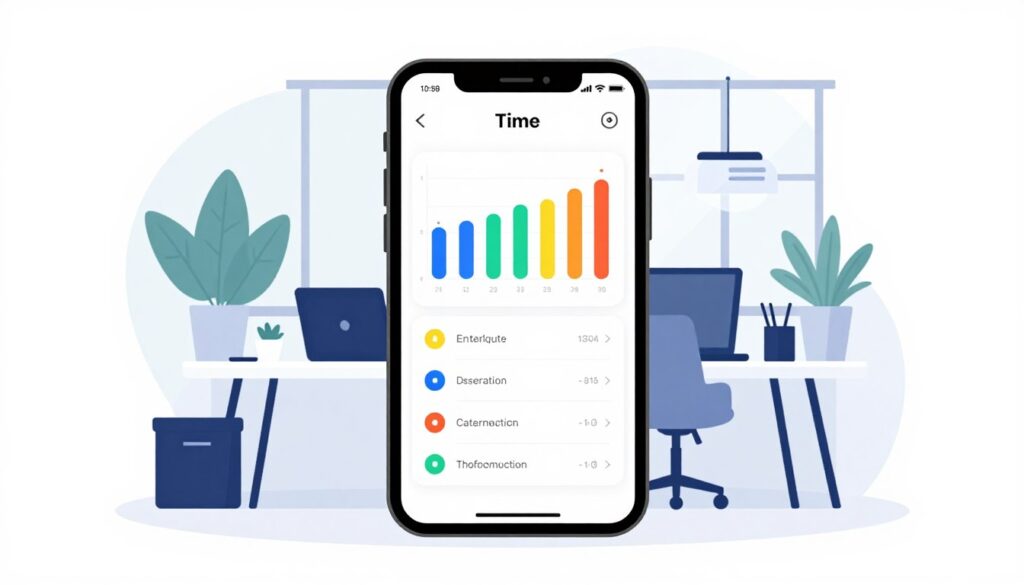
Toggl Track focuses on keeping timers simple while surfacing rich analytics for freelancers and consultants. It offers a clean start/stop experience and clear organization of time entries by client and project.
The calendar view and Google Calendar syncing give quick visibility into where the week went. That matters for consultants who need to turn hours into invoices or spot double-booked days.
Best for straightforward timers, calendar views, and reporting
Strength: detailed reports that break down time by project and task. These reports help with accurate billing and better self-management.
Where the learning curve shows up for admins and teams
Admins report friction setting up workspaces and permissions. A notable learning curve appears when teams standardize tags, tasks, and approval rules.
Pricing reality check: free plan vs. higher paid tiers
The free plan covers basic timers and limited reports, but meaningful team features often push buyers to the paid tier (from about $10/user/month). Cross-platform apps are strong, though the Linux client is no longer maintained.
| Aspect | Why it matters | Snapshot |
|---|---|---|
| Core value | Fast timers + organized entries | Simple UX, clear client/project breakdowns |
| Calendar & sync | Weekly visibility | Calendar view + Google Calendar sync |
| User signals | Real-world fit | Capterra 4.7, G2 4.6 — praised for starter ease, some outgrow it |
Harvest: time tracking built for client invoicing and budget visibility
For client-driven teams, Harvest streamlines the path from tracked hours to payment. It focuses on clear budget visibility, simple reports, and quick invoicing instead of heavy project management layers.
Turning tracked hours into invoices (and getting paid faster)
Harvest converts project time into invoices with fewer steps, which reduces billing errors and speeds collections. Teams can attach expenses and receipts to projects to keep client billing accurate.
It accepts online payments and produces invoice-ready totals from time entries. Reminders and timesheet review tools help managers approve work before invoicing.
Integrations with project management tools like Asana and Trello
Harvest plugs into tools like Asana, Trello, Slack, and QuickBooks to pull tasks and sync billable hours. That makes Harvest a complement to project management platforms that lack deep tracking.
These connections keep project and task context intact so invoices match the scoped work.
Limitations for larger teams and deeper project management
Harvest lacks automatic AI capture, offline or GPS support, and offers only basic project management features. Admin controls are limited, so larger organizations may outgrow it.
Pricing and signals: a free plan exists; paid plans start at about $13.75/user/month. Review scores sit around Capterra 4.6 and G2 4.3.
- Best fit: agencies and professional services that need time tracking + invoicing + budget reporting.
- Not for: teams that require GPS, automatic background capture, or deep PM controls for large-scale programs.
| Aspect | Strength | Platform | Limit |
|---|---|---|---|
| Invoicing | Fast conversion from hours to invoices | Web, Windows, macOS, iOS, Android, browser extension | No advanced billing automation |
| Budget visibility | Project and team capacity reporting | Integrates with Asana, Trello, Slack, QuickBooks | Basic PM features |
| Expenses | Attach receipts to projects | Mobile/desktop apps | No offline capture or GPS |
| Scaling | Clear for small businesses and agencies | Free plan + paid tiers (from ~$13.75/user/mo) | Limited admin controls for large teams |
Hubstaff: strong monitoring features for remote teams and payroll automation
For managers who need activity signals and payroll-ready reports, Hubstaff is a frequent choice. It blends automated time tracking with activity monitoring and real-time dashboards built for distributed teams.

Automated capture, activity levels, and proof-of-work
Hubstaff offers background timers, activity scoring, and optional screenshots to support payroll accuracy and client proof-of-delivery.
These features reduce disputes when policies are clear. They can also harm trust if teams lack transparency.
GPS, geofencing, and field-friendly capabilities
The mobile and desktop apps include GPS tracking and geofence clock-ins for field work. That helps with job-site logs and payroll by location.
Geofencing can be bypassed in edge cases, so admins must plan rules and audits for reliable project tracking.
Common friction points and integrations
Hubstaff can feel complex for new users. The learning curve and admin overhead rise when teams enable many monitoring features.
Integration friction has been reported for QuickBooks/Salesforce workflows. Buyers should test export paths early to avoid manual reconciliation.
- Best fit: remote teams that need monitoring signals and payroll automation at scale.
- Watch for: privacy policies, UI complexity, and integration gaps that affect bookkeeping or CRM flows.
- Trial & pricing: no free plan; 14-day trial; starts at $4.99/seat/month. Reported reviews: Capterra 4.6, G2 4.5.
| Strength | Concern | Platform / Pricing |
|---|---|---|
| Automated tracking, activity metrics, GPS, payroll automation | Perceived intrusiveness, UI learning curve, integration friction | Windows, macOS, Linux, Web, Chrome, iOS, Android, Chromebook; 14-day trial; from $4.99/seat/mo |
Jibble: attendance-first time clock with GPS, geofencing, and biometric options
For businesses that prioritize accurate clock-ins over deep project controls, Jibble centers on attendance. It combines facial recognition, GPS geofencing, and simple mobile flows so deskless workers can clock in quickly from a phone.
Reducing buddy punching with facial recognition and location controls
Facial verification and geofencing make it harder to falsify entries. Managers can require location or face checks to confirm who clocked in and where.
Payroll-ready totals: overtime, breaks, and exports
Jibble auto-calculates hours, overtime, and unpaid breaks. Exports and payroll integrations shorten payroll prep and reduce manual adjustments.
Where it’s lighter: scheduling and shift planning
Scheduling and shift planning are limited. Teams that need advanced shift templates or internal messaging should validate those needs before buying.
- Strengths: free plan available, biometric verification, GPS, easy onboarding, strong reviews (Capterra 4.9, G2 4.6).
- Limitations: constrained report customization, no built-in messaging, occasional admin-refresh quirks.
| Aspect | Jibble | Why it matters |
|---|---|---|
| Best fit | Attendance-first teams | Accurate clock-ins, compliance |
| Key features | Facial ID, GPS, geofencing, auto hours | Reduces buddy punching, eases payroll |
| Platforms & price | Windows, macOS, Web, iOS, Android; free plan; paid from $3.49/user/mo (annual) | Mobile-first for deskless workers |
| Scheduling | Basic | May need separate shift tool |
My Hours: clean time tracking for freelancers and small teams
My Hours focuses on a clean interface that helps freelancers and small teams track billable work with minimal setup.
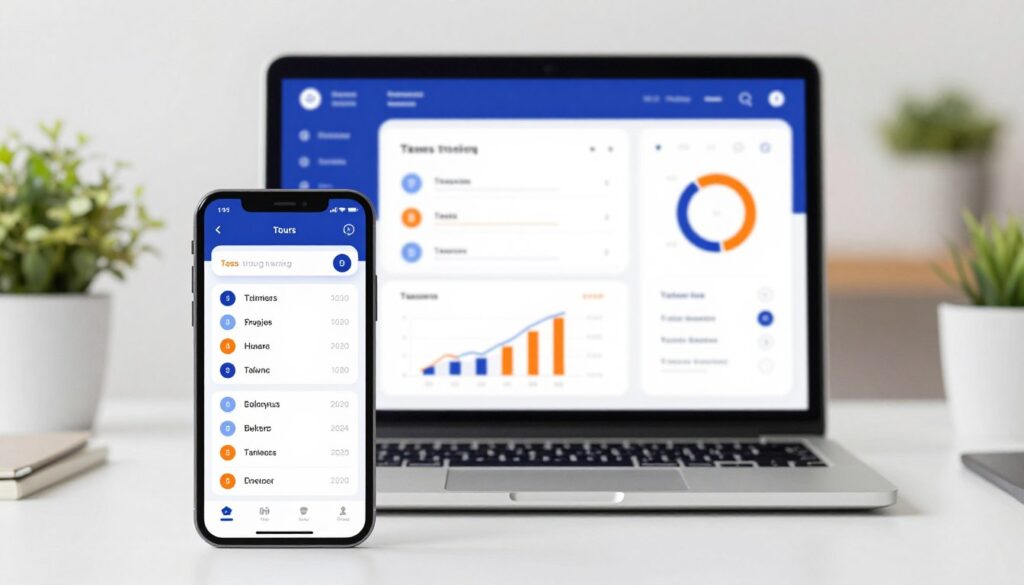
The app offers manual entry or start/stop timers, clear note fields for entries, and exportable reports that make billing conversations easier.
The free plan is generous: unlimited projects and clients, which helps early-stage teams avoid friction as they grow. Paid plans start at $9/user/month.
Best for simple client tracking and readable reports
It suits people who want easy use, quick client setup, and tidy reports for invoices. Zapier integrations extend workflows without heavy admin.
Trade-offs: limited automation and invoicing customization
Advanced automation lives behind paid tiers. Invoicing customization is limited, and some users report occasional login or sync issues on mobile.
| Platform | Start price | User review |
|---|---|---|
| Windows, macOS, Linux, Web, iOS, Android, browser extension | $0 / $9 per user | Capterra 4.8, G2 4.6 |
| Key features | Timers, manual entry, exports | Responsive support, Zapier |
| Best fit | Freelancers, small businesses, small teams | Simple project time tracking |
Recommendation: Choose My Hours when you value clarity and fast adoption over deep automation or heavy project controls. Test key reports during evaluation to confirm invoice formatting meets client needs.
Everhour: best for teams that live inside tools like Asana and ClickUp
Everhour is designed to keep tracking inside project management workflows, not beside them. It embeds timers and manual entries directly into task views so people record work where tasks already live.
Tracking time directly in project management workflows
By placing timers inside Asana, ClickUp, and Trello, Everhour reduces context switching. Users start a timer on a task and the entry stays linked to that task and project.
This approach increases compliance because logging is near the work. It also makes edits and approvals simpler for project managers.
Budget alerts, approvals, and client-ready reporting
Key workflow strengths include budget alerts that warn before overruns and timesheet approvals that lock entries for payroll. Customizable reports export clean, client-ready summaries rather than raw CSV logs.
Agencies benefit from polished shareable reports and built-in time-off and Pomodoro support for predictable capacity planning.
Key constraints: platform gaps and minimum seats
Everhour requires an internet connection and lacks an Android app, which limits mobile-first teams. The paid tier starts at $10.50/seat/month with a five-seat minimum, raising the entry price for small groups.
User reviews are strong (Capterra 4.7, G2 4.7), indicating stable integrations and reliable project-focused tracking.
- Best fit: teams whose primary system of record is a project management tool.
- Watch: no offline mode and a minimum seat requirement for paid plans.
| Feature | Everhour | Why it matters |
|---|---|---|
| Integration | Asana, ClickUp, Trello (embedded timers) | Track where tasks live to reduce errors |
| Reporting | Custom exports, client-ready summaries | Agencies get polished invoices and reports |
| Controls | Timesheet approvals, budget alerts, idle detection | Improves payroll accuracy and budget control |
| Platform & pricing | Windows, macOS, Web, iOS, browser extension; $10.50/seat/mo (min 5); free plan for small teams | Good desktop/web coverage but no Android or offline |
More top-rated time-management tools worth considering in 2025
For buyers who need tighter invoicing, GPS, or automated capture, several reputable options stand out.
Paymo blends project management and invoicing with built-in tracking. Paymo Track logs desktop apps and websites online or offline, keeps local logs under user control, and avoids screenshots for privacy. It also includes a strong Pomodoro mode and US payment gateways. Free and low-cost plans start near $3.90/user/month (Capterra 4.7, G2 4.6).
Clockify
Clockify is widely adopted for teams that want GPS context and an easy UI. The free plan is useful but feature-restricted; basic paid plans start at about $4.99/user/month. Verify uptime and cancellation policies during evaluation (Capterra 4.7, G2 4.5).
Time Doctor, TimeCamp, Timely, RescueTime
Time Doctor is for intensive oversight: periodic screen capture and strict monitoring can aid compliance but may hurt trust.
TimeCamp offers a cost-free entry point with productivity insights for teams new to tracking.
Timely and RescueTime focus on automated capture and context switching, helping teams understand where attention is lost when manual timers fail.
| Tool | Strength | Watch for |
|---|---|---|
| Paymo | Invoicing + PM, privacy-focused capture | US payment limits, verify gateways |
| Clockify | Broad adoption, GPS | Free plan limits, past downtime reports |
| Time Doctor | Screen capture, strict oversight | Employee backlash, culture fit |
| TimeCamp / Timely / RescueTime | Free entry, automated context insights | May lack full PM features |
These tools expand the shortlist. Buyers should match privacy, automation, and field needs to the chosen time tracker before committing.
Implementation tips: rolling out time tracking without slowing teams down
A clear rollout plan makes the difference between a tracking tool that saves money and one that creates more admin work.
Start by explaining why tracking matters: billing accuracy, fair payroll, and better planning. Define privacy boundaries and disclose any monitoring features up front to reduce pushback.
Reducing resistance: transparency and clear policies
Communicate purpose, data rules, and when entries become final. Keep policies short and shared in a single place so everyone can find them.
Standardizing time entries and approvals
Enforce naming conventions for clients, projects, and tasks. Require notes for edits and set firm timesheet due dates.
- Who approves and when entries lock for payroll.
- Simple tags for billable vs. non-billable work.
Making reporting actionable for capacity and budgets
Validate reports on one department first. Link dashboards to decisions: capacity planning, budget burn, and project time forecasts.
Use vendor customer support during setup to shorten the learning curve and ensure exports and approvals match payroll needs.
| Step | Action | Goal |
|---|---|---|
| Pilot | Run with one project/department | Prove reports and reduce surprises |
| Policy | Publish privacy and monitoring rules | Build trust and reduce resistance |
| Standards | Naming conventions for projects and tasks | Clean, auditable time entries |
| Scale | Roll out with training + customer support | Lower learning curve, steady adoption |
Conclusion
Start with the task: how teams record work determines which product will stick.
Match capture needs first — timers, GPS, facial verification, or automated entries — then check reporting, integrations, and admin controls. That order narrows choices fast.
Shortlist two to three tools and run a real project pilot. Test exports, approvals, and payroll flows so tracking software delivers usable data, not extra cleanup.
Remember to review free plan limits vs. free trials; many free tiers skip key controls that support scale. Practical winners include Apploye (all-in-one), Toggl (freelancer-friendly), Harvest (invoicing), Hubstaff (monitoring), Jibble (attendance), and Everhour (PM-embedded tracking).
Finally, publish simple policies and standardize entry names. Pick the best-fit tool, pilot it, and expand once reports and workflows prove reliable.
FAQs
What is the difference between time tracking software and time management software?
Time tracking software focuses on recording time spent on tasks, projects, and clients, using timers, timesheets, and reports. Time management software goes further by adding approvals, payroll controls, budgeting, compliance, and team oversight, making it suitable for businesses managing multiple employees and billing workflows.
How does tracking software improve visibility into time spent on tasks?
Tracking software captures real-time work data, showing where hours are actually going across projects and task management systems. This visibility helps teams detect bottlenecks, reduce under-estimated work, improve delivery timelines, and support accurate billing and payroll.
When should a business upgrade from a simple tracking app to management software?
A business should upgrade when it needs timesheet approvals, payroll exports, overtime rules, audit trails, or role-based access controls. These features are critical once teams grow beyond solo contributors and require structured task management, compliance, and financial accuracy.